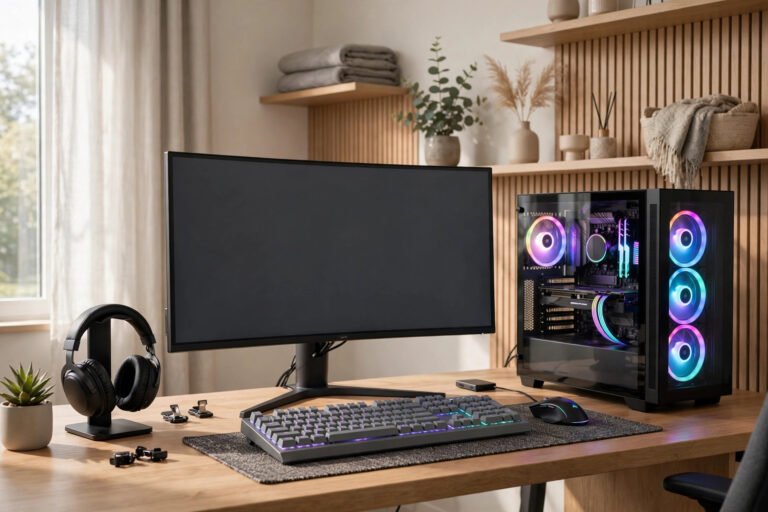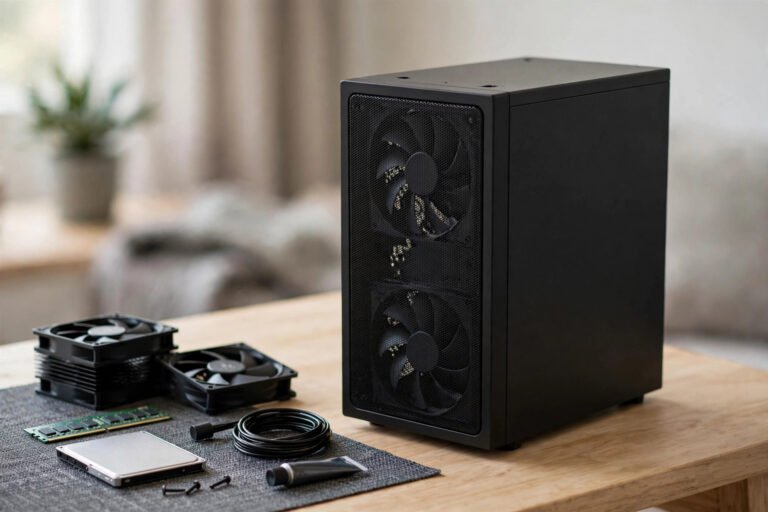
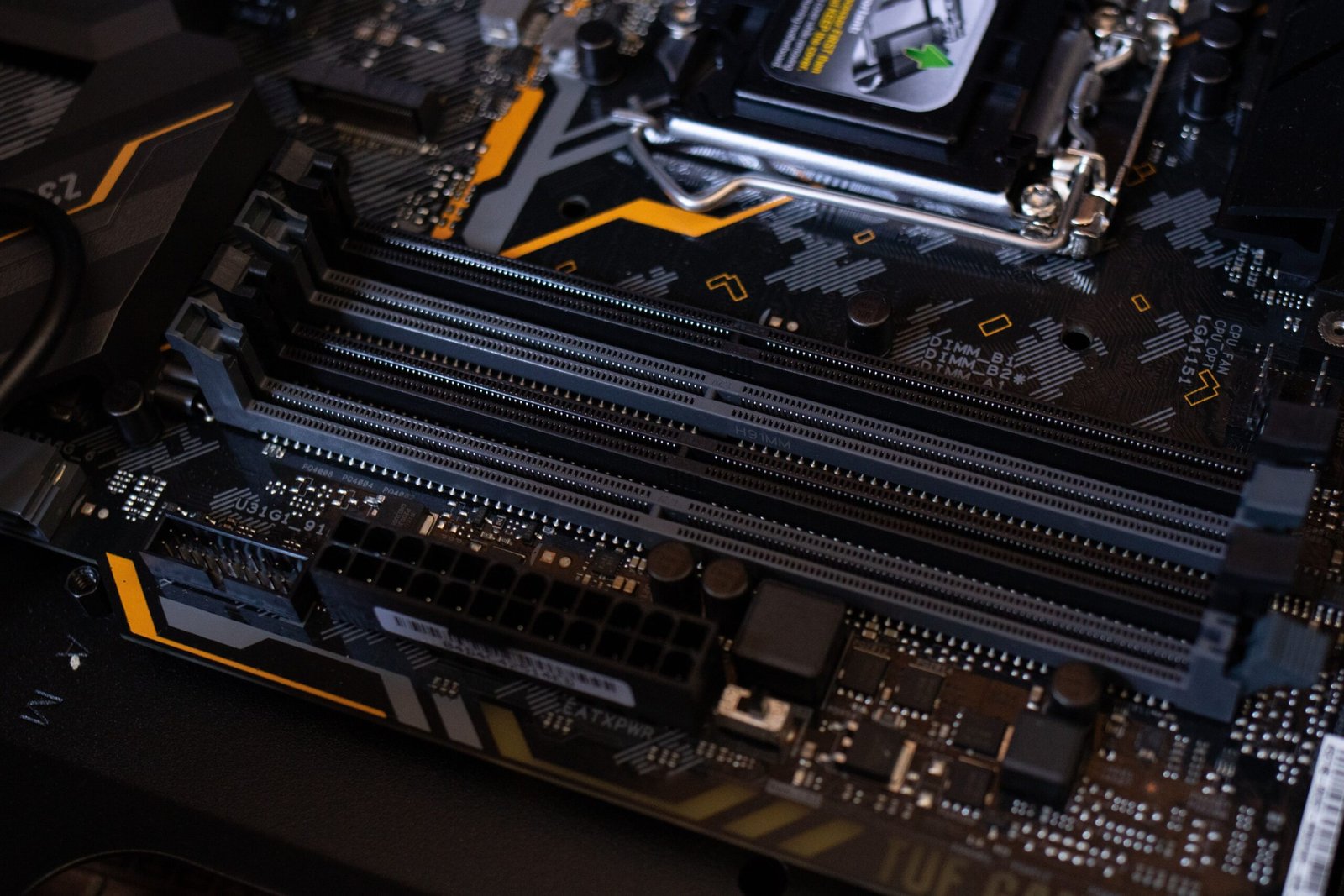
Dust buildup on fans and heatsinks is the most common cause of gaming PC overheating
A gaming PC running hotter and louder than your everyday desktop use isn’t automatically a problem, that’s normal under load. It becomes an actual issue when heat starts costing you performance, causing crashes, or risking permanent hardware damage. Here’s how to tell the difference and fix it properly.
When Heat Is Actually a Problem
Don’t diagnose your system against a blanket rule like “anything above 80°C is dangerous,” since safe thermal limits vary significantly by specific CPU, GPU, and cooling design. Treat heat as a genuine problem when it comes with sustained clock-speed reductions (thermal throttling), major frame rate drops, stuttering, crashes, unexpected shutdowns, or a fan that never seems to increase speed even under heavy load.
The Most Common Causes, in Order
1. Dust Buildup
This is the single most common cause of overheating in PCs more than two to three years old. Dust accumulates on fans, heatsink fins, and intake filters, reducing airflow and insulating components that need to stay cool. A heavily dust-clogged PC can run 10-20°C hotter than an equivalent clean one.
2. Poor Case Airflow
If a case lacks a clear intake-to-exhaust airflow path, or cables are blocking that path physically, hot air builds up inside rather than being cleared out. The standard fix is ensuring front/bottom fans pull air in while rear/top fans push hot air out, not fighting against each other.
3. Old or Poorly Applied Thermal Paste
Thermal paste fills microscopic gaps between your CPU or GPU and its heatsink, and it typically dries out and loses effectiveness after three to seven years, causing a gradual temperature creep that’s easy to miss until it’s significant. If a heatsink was improperly seated during a build or repair, it may never have been making full contact with the processor in the first place.
4. Uncapped Frame Rates
If a 144Hz monitor is paired with a game running at 220fps in lighter scenes or menus, the GPU is working harder than necessary for zero visible benefit. Capping frame rates to your monitor’s actual refresh rate reduces heat, noise, and power draw while feeling identical during play.
Fixes Ranked by Effort and Impact
| Fix | Effort | Typical Impact |
|---|---|---|
| Clean dust from fans/filters | Low (15-30 min) | High if dust was the cause |
| Improve case airflow/fan direction | Low-Medium | Medium to high |
| Cap frame rate to monitor refresh rate | Very low (settings only) | Medium |
| Reapply thermal paste | Medium (requires disassembly) | High if paste was old/degraded |
| Undervolt CPU/GPU | Medium-High (requires care) | High, but riskier if done incorrectly |
A Word on Undervolting
Undervolting reduces voltage while aiming to maintain similar performance, and done correctly it can meaningfully lower both temperature and noise with little to no frame rate loss. Done carelessly, it can cause instability and crashes. This is best treated as an advanced fix to try only after cleaning, airflow, and fan curves have already been addressed, starting with a simple GPU power limit reduction of 5-10% before attempting manual voltage tuning.
Maintenance Schedule Worth Following
Clean dust from fans and filters every three to six months for a typical gaming setup, more often if you have pets or the PC sits on carpet. Reapplying thermal paste isn’t a routine task, it’s only necessary every several years or when temperatures have crept up despite regular cleaning.
If overheating is pushing you toward a hardware upgrade rather than a cleaning session, our RTX 5090 vs 5070 Ti vs 5070 guide covers choosing a better-cooled GPU tier.
Frequently Asked Questions
How often should I clean the dust out of my gaming PC?
Every three to six months for typical use, though homes with pets or dusty environments may need more frequent cleaning to prevent buildup between sessions.
Can overheating actually damage my PC permanently?
Yes, if left unaddressed for extended periods, sustained excessive heat accelerates component degradation and can cause permanent damage, not just temporary performance loss.
Is a loud gaming PC always a sign of overheating?
Not necessarily, since fans naturally spin faster under gaming load as a normal response. It’s only a concern when combined with actual performance drops, throttling, or crashes alongside the noise.
Final Thoughts
Most gaming PC overheating comes down to dust, poor airflow, or ageing thermal paste, all fixable without professional help or new hardware. Work through the causes in that order before assuming you need to replace anything.
Related Guides
If you want to go deeper on specific overheating and hardware problems, these guides pick up where this one leaves off:
- Laptop Overheating While Gaming? How to Fix It – a 2026 UK guide covering cooling pads, fan curves, undervolting and repasting for laptops that run hot.
- How to Undervolt Your GPU for Gaming – lower your graphics card’s temperatures and noise without losing FPS, using MSI Afterburner’s curve editor.
- GPU Sag: How to Fix a Drooping Graphics Card – how to support a heavy graphics card with brackets and stands, and why sag matters for cooling.
About the Author