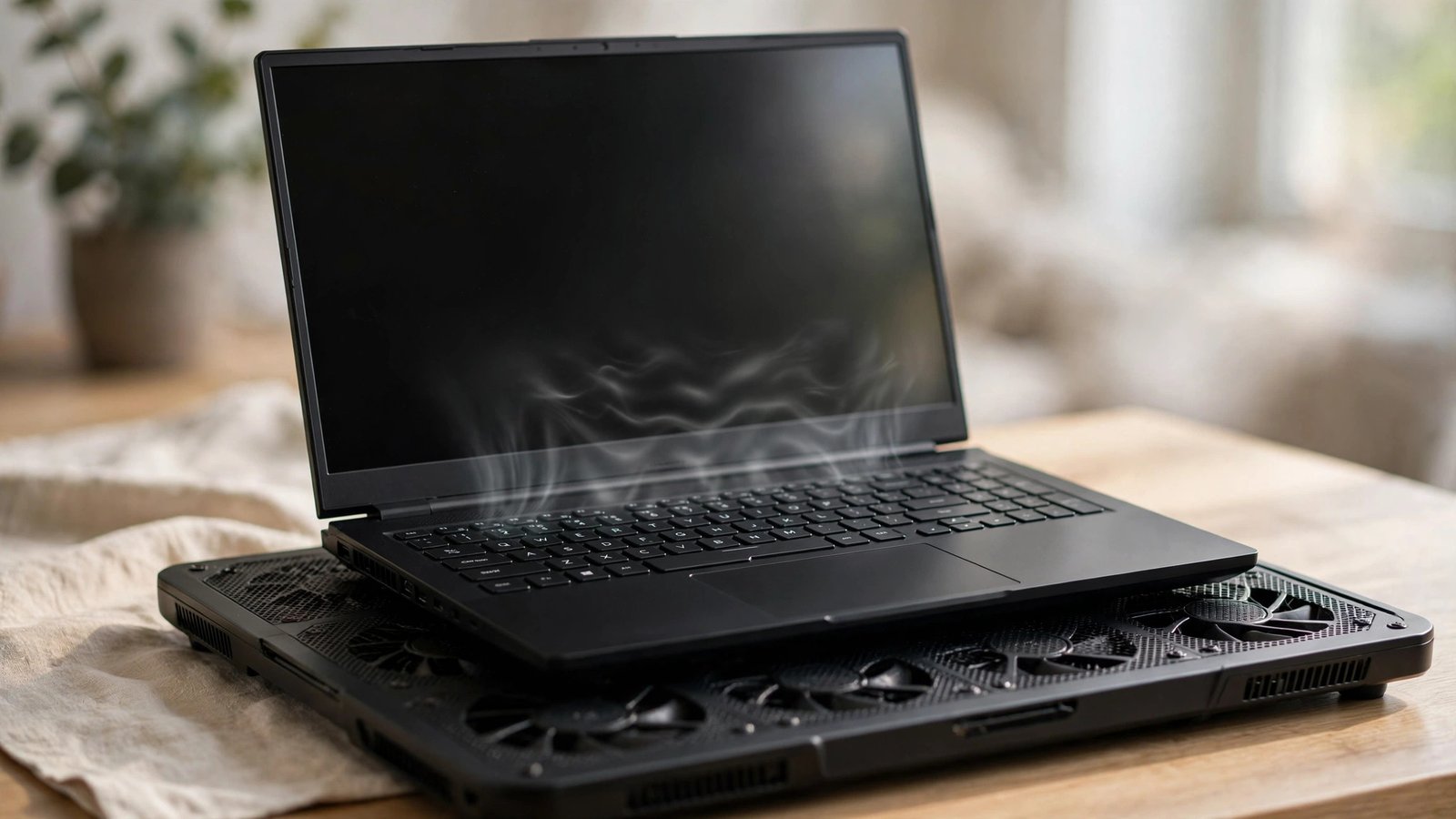
If your laptop sounds like a hairdryer every time you load a game, you are not alone. To fix a laptop overheating while gaming: clean the dust from the vents, lift the back of the machine so air can flow underneath, run a more aggressive fan curve, and try undervolting the CPU or GPU, which can cut temperatures by 5 to 15 degrees with no loss of performance. Most overheating laptops can be sorted at home for little or no money.
Why Do Laptops Overheat When Gaming?
Games push the CPU and GPU to their limits at the same time, and a gaming laptop squeezes both into a chassis only a couple of centimetres thick, so heat builds up fast. Add dusty fans, dried-out thermal paste, vents blocked by a bed or sofa, or a warm room during a British heatwave, and temperatures can climb past 90 degrees. The laptop then slows itself down to avoid damage, which is why your frame rate often drops after twenty minutes of play.
The usual suspects, in the order we see them most:
- Dust and fluff clogging the fans and heatsinks
- Thermal paste dried out after two or three years
- Intake vents blocked by soft surfaces or cramped desks
- High room temperatures, especially upstairs in summer
- Turbo boost feeding the chip more power than the cooler can shift
- Background apps hammering the CPU while you play
How to Tell If Your Laptop Is Overheating
Install a free tool like HWMonitor or HWiNFO and watch temperatures during a gaming session. A CPU sitting above 90 degrees, or a GPU above 85, for long stretches is running too hot. Other warning signs: fans stuck at full speed, frame rates that start fine then fall away, and in the worst case the laptop switching itself off mid-game.
Laptop Overheating Fixes, Ranked by Effort
Start with the easy wins at the top of the table and work your way down. Few people need to go past step five.
| Fix | Typical UK cost | Difficulty | Temperature drop |
|---|---|---|---|
| Clear the vents and use hard surfaces | Free | Easy | 2-5 degrees |
| Elevate the back of the laptop | Free | Easy | 2-5 degrees |
| Clean dust from fans and vents | Free | Easy | 3-8 degrees |
| Use a cooling pad | £20-£40 | Easy | 3-10 degrees |
| Set a stronger fan curve | Free | Easy | 2-6 degrees |
| Undervolt the CPU and GPU | Free | Medium | 5-15 degrees |
| Replace the thermal paste | £10-£20 | Hard | 5-20 degrees |
1. Give the Vents Room to Breathe
Gaming on a bed, sofa or duvet is the fastest way to overheat a laptop, because soft surfaces seal off the intake vents and the fans end up recycling hot air. Always play on a hard, flat surface and keep the side and rear exhausts clear.
2. Elevate the Back of the Laptop
Hot air rises, so lifting the rear of the laptop even slightly improves airflow underneath. A proper stand is ideal, but a book or a couple of bottle caps under the back corners works as a test.
3. Clean the Dust Out
If nobody has cleaned your laptop in a year or more, dust is almost certainly part of the problem. Use short bursts of compressed air through the intakes, holding the fans still so they do not spin too fast. Many models let you remove the bottom panel for a deeper clean, but check the manual and skip this if it would break a warranty seal.
4. Get a Cooling Pad
A cooling pad is a stand with built-in fans that pushes extra air into the intakes. Expect a drop of roughly 3 to 10 degrees, with the best results on laptops whose vents sit on the base. UK prices start at around twenty pounds, making this one of the cheapest meaningful upgrades you can buy.
5. Take Control of the Fan Curve
Most laptops ship with a timid fan curve that favours quiet over cool. Look in your manufacturer’s control software, such as Armoury Crate, Legion Zone or Omen Gaming Hub, for a performance or turbo mode that ramps the fans up earlier.
6. Undervolt the CPU and GPU
Undervolting lowers the voltage your chips run at, cutting heat and power draw without lowering clock speeds, so frame rates stay put. It is done in software, it is reversible, and it often delivers the biggest free temperature drop available: 5 to 15 degrees. Our guide to how to undervolt your GPU for gaming walks through the curve editor method step by step, including stability testing.
7. Replace the Thermal Paste (and When to Get Help)
Thermal paste sits between the chips and the heatsink, and after two or three years it dries out and stops moving heat properly. A fresh application can cut temperatures by 5 to 20 degrees on an older machine. Paste costs about ten pounds; if you would rather not open the machine yourself, a repair shop will usually do a clean and repaste for thirty to sixty pounds. Desktop owners should read our gaming PC overheating guide instead, and if your graphics card is drooping and blocking airflow, see how to fix GPU sag.
Frequently Asked Questions
Is 90 degrees too hot for a laptop CPU while gaming?
Short spikes to 90 degrees are normal on thin gaming laptops, but sustained heat there means thermal throttling is eating your frame rate. Work through the fixes above until sessions stay between 75 and 85 degrees.
Do laptop cooling pads actually work?
Yes, within reason. A decent pad usually drops temperatures by 3 to 10 degrees by feeding cool air to the intakes. Models with fans that line up with your laptop’s vents give the best results.
Will undervolting void my laptop warranty?
No. Undervolting only changes software settings and is fully reversible, so your warranty is unaffected. Just do not flash custom BIOS versions, which is a different and riskier modification.
How often should I clean my laptop’s vents?
Every three to six months if you have pets or carpets, otherwise once a year is usually enough. If the fans suddenly get louder than usual, treat that as your reminder.
About the Author