How to Connect a Retro Console to a Modern TV: Every Cable Explained
Yes, you can connect a retro console to a modern TV. First check what ports your TV still has, then match the console to the best cable it supports: RGB SCART for most PAL consoles, component for PS2, S-Video for N64, and a composite-to-HDMI converter or a proper upscaler when no analogue ports exist. Set the TV to 4:3 aspect ratio and switch on Game Mode for the best picture and the lowest lag.
This guide ranks every cable from worst to best, gives the right connection for each popular console, and explains why old games can feel sluggish or look blurry on new TVs. It focuses on PAL consoles, because the right cable for a UK machine often differs from American advice.
First, Check What Your TV Still Has: The Ports That Matter
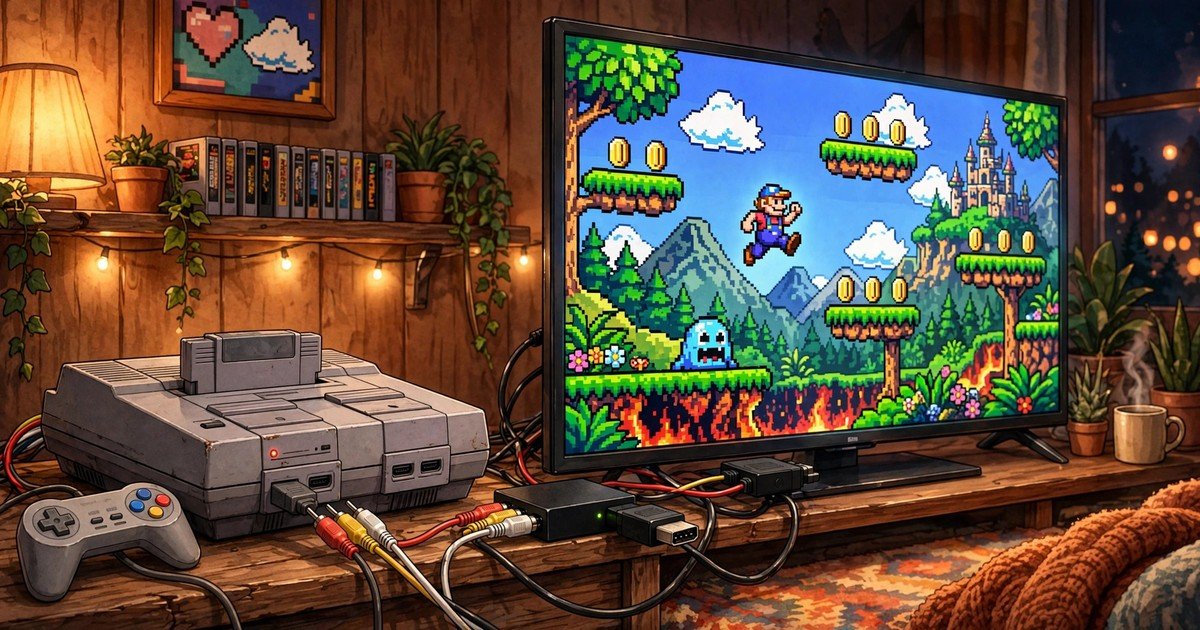
Before you buy anything, look at the back of your TV. SCART sockets vanished from most UK TVs years ago, but many sets from the last decade still have a composite video input, sometimes as a shared port that needs a small adapter lead. Some also carry component inputs (green, blue and red) or a coaxial aerial socket.
If your TV has any of these ports, you can connect the console directly. If it only has HDMI, you need a converter or an upscaler. Also note the exact model of your console, because a PAL Mega Drive, a PAL N64 and a PAL PlayStation each take different cables.
The Cable Ladder: RF, Composite, S-Video, Component and SCART Ranked by Picture Quality
Old consoles sent their picture down one of five cable types. From worst to best:
- RF: everything travels down one coaxial cable to the aerial socket, and you tune it like a channel. Noisy and soft. Use it only if nothing else is available.
- Composite: the yellow RCA plug carries the whole picture in one signal. Better than RF, but colours bleed and text smears.
- S-Video: separates brightness from colour. A clear step up from composite, though it needs a matching input or an upscaler.
- SCART with RGB: carries red, green and blue separately. The sharpest picture most retro consoles can produce, and the standard connection for PAL consoles in the UK.
- Component (YPbPr): red, green and blue plugs, similar quality to RGB SCART, and it can carry progressive scan signals on consoles like the PS2.
One warning about cheap cables: a SCART lead that is not wired for RGB will fall back to composite and look no better than the yellow plug. Buy leads from retro gaming specialists and check the listing says RGB.
Console by Console: The Best Connection for Each System
| Console | Original cable | Best affordable cable |
|---|---|---|
| NES | RF lead to the aerial socket | Composite RCA lead if your TV has the yellow input |
| SNES (PAL) | RF modulator or composite | RGB SCART lead, usually under £15 |
| Mega Drive | RF modulator | RGB SCART lead for Model 1 or Model 2 |
| N64 (PAL) | Composite | S-Video cable (a PAL N64 cannot output RGB without a mod) |
| PlayStation (PAL) | Composite | RGB SCART lead |
| PS2 | Composite | Component cable for progressive scan, or RGB SCART for PS1 games |
| Saturn (PAL) | Composite | RGB SCART lead |
| Dreamcast | Composite | RGB SCART lead, or a VGA box for 480p on supported games |
| GameCube (PAL) | Composite | RGB SCART lead |
Sega fans should also see our roundup of Sega Mega Drive games to test the new setup with. PlayStation owners can read can you play PS2 games on PS3 before choosing cables, and GameCube collectors can check will GameCube games play on Wii for another way to enjoy those games.
No Matching Port? Your Three Options
Most TVs sold in the last few years have HDMI only. You have three ways around this.
1. A cheap composite-to-HDMI converter (around £10 to £20)
It takes the yellow composite plug and outputs HDMI. It works, but it adds lag and the picture stays composite quality. Fine for casual play, not for anyone chasing a crisp image.
2. A proper upscaler (around £120 and up)
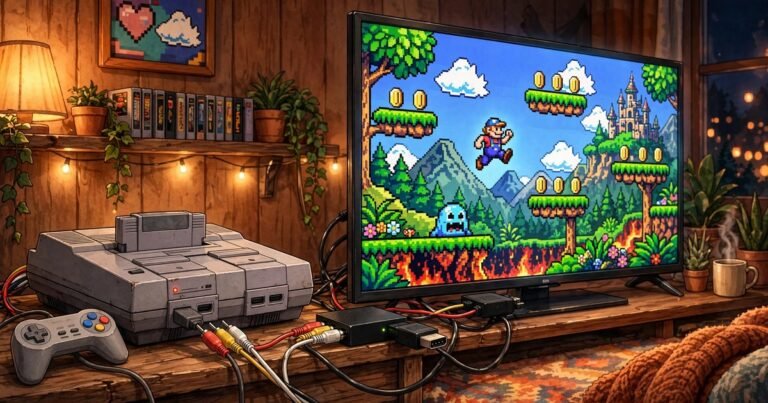
Devices like the RetroTINK-2X take composite, S-Video and component and output clean low-lag HDMI. The RetroTINK-5X Pro, roughly £300 to £400 in the UK, adds RGB SCART input, 1080p output and scanline options. The open-hardware OSSC is a cheaper alternative for purists. An upscaler converts the console’s analogue signal into digital HDMI, doing the work the TV cannot do well itself. If you play a lot, this is the purchase that makes the biggest difference.
3. A small old LCD or a CRT
An older flat screen with SCART built in, or a CRT if you have the space, gives the most authentic result with zero conversion. CRTs also suit light guns, which do not work on modern TVs at all.
Why It Feels Wrong: Input Lag and the 240p Problem, Explained Simply
Input lag is the delay between pressing a button and seeing the result on screen. Modern TVs process every frame for smoothing and enhancement, which adds lag. On a CRT the delay was near zero, so a game that felt perfect in 1998 can feel floaty today.
240p is the resolution most 8-bit and 16-bit games used: a progressive signal with 240 visible lines. Modern TVs expect 480i or higher, so they mistake 240p for an interlaced signal and try to “fix” it, causing flicker and shimmer. A good upscaler tells the TV what 240p really is, which is why the picture cleans up so much.
Getting the Picture Right: Aspect Ratio, Game Mode and the Settings to Change
Old games were drawn for square-ish 4:3 screens. If your TV stretches them to 16:9 widescreen, everything looks fat. Go into the picture settings and set the aspect ratio to 4:3 or “Original”.
Then switch on Game Mode. This turns off the processing that causes input lag. Also turn off motion smoothing and noise reduction.
Sound Problems and No-Signal Screens: Quick Fixes
Picture but no sound usually means the red and white audio plugs are loose, or the TV is set to the wrong analogue source. With a converter, try powering it from a wall plug rather than the TV’s USB port, which can underpower some units.
A “no signal” screen usually means the TV cannot lock onto the console’s 240p output. Try a different HDMI port, set the converter to 720p output, or power everything on in order: console first, then the converter, then the TV.
FAQs
Can you plug a Mega Drive into a 4K TV?
Yes. Connect the Mega Drive to a converter or an upscaler via an RGB SCART lead, then plug the HDMI output into the TV. Set the TV to 4:3 and enable Game Mode.
Why does my N64 look blurry on a new TV?
The N64 outputs 240p, which modern TVs handle badly, and composite blurs its already soft image. An S-Video cable plus an upscaler gives the sharpest picture a PAL N64 can manage without modification.
Do I need an upscaler or is a £10 adapter enough?
A £10 adapter is enough for casual play. An upscaler is worth it if you play regularly, care about sharp pixels and low input lag, or your TV shows a black screen with the cheap adapter.
Why is there a delay when I press jump?
That is input lag. Turn on Game Mode and disable motion smoothing and noise reduction. If it still feels off, an upscaler removes the conversion work the TV struggles with.
How do I stop the picture stretching to widescreen?
Open your TV’s picture settings and change the aspect ratio from 16:9 to 4:3 or “Original”. Some upscalers can force 4:3 output too.
Is it better to play on original hardware or just use emulation?
Original hardware on a good upscaler gives the most authentic experience and supports real cartridges and accessories. Emulation is cheaper and simpler but carries legal questions around downloading games. Our upcoming guide on whether emulation is legal in the UK will cover that in detail.
Conclusion
Connecting a retro console to a modern TV comes down to three choices: the right cable for your console, a converter or upscaler when your TV lacks analogue ports, and a few TV settings. The PAL consoles most UK players own were designed around RGB SCART, so a proper SCART lead is usually the single best upgrade you can buy.
About the Author