Finding a game to play in a free period or during lunch is easy. Finding one that will not cause problems for you or your school’s computers takes a little more care. Some browser game sites are clean, well-run arcades; others are packed with misleading buttons, risky downloads and aggressive pop-ups. This guide shows you how to tell the difference and stay out of trouble.
What a Safe Browser Game Site Looks Like
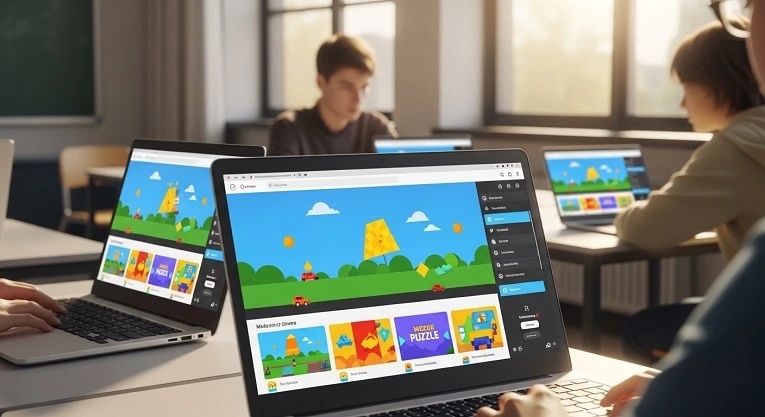
A trustworthy game site keeps things simple. The address starts with https, games load directly in your browser with no installer, and the site says who runs it: an about page or contact details is a good sign. Adverts are fine in moderation, since they are how free sites pay their bills, but they should stay in their banners and not pretend to be part of the game.
Safe sites also respect your browser: no extensions to install, no settings to change, no protections to switch off. If a game needs nothing more than a click, that is how browser gaming should work. Portals your school itself allows are usually the safest bet, so ask your teacher or librarian for approved lists.
Red Flags That Mean Close the Tab
Risky sites rely on you not noticing these warning signs, so learn to spot them:
Download prompts. A browser game should never ask you to download an installer. If clicking “play” starts a download instead of loading a game, leave immediately. Downloaded files from game sites are one of the most common ways school computers pick up malware.
Browser extensions. Any site that tells you to install its extension is asking for far more access than a game needs. Extensions can read your browsing activity, so never install one from a game site, especially on a school device.
VPN upselling and “unblocker” tools. Sites pushing VPN downloads or proxy tools to “bypass your school filter” are encouraging you to break school rules, and they often bundle unwanted software. Treat any unblocker pitch as a red flag, not a favour.
Fake play buttons and redirect loops. If the page is covered in “PLAY NOW” buttons that open new tabs full of adverts, the real game is buried under junk. A good site has one clear play button per game.
Requests for personal details. A browser game has no reason to ask for your email or phone number. If a site demands an account before you can play a simple arcade game, find another site.
What Your School’s Acceptable-Use Policy Means
Almost every school asks students to agree to an acceptable-use policy for its computers and network. In plain terms, the devices are provided for learning and you agree to use them responsibly. Games are not automatically banned — many schools allow them during breaks — but the policy usually forbids getting around filters, installing software, or visiting blocked sites.
Here is the key point: just because a site loads does not mean you are allowed to use it. Filters miss things, and “the filter didn’t stop me” is no defence if the site was clearly off-limits. Unsure whether a gaming site is acceptable? Ask a teacher. It takes thirty seconds and removes all doubt.
Breaking the policy can cost you computer privileges or lead to disciplinary action. It is never worth risking that over a game you could just as easily play at home.
Smart Habits for Safer Play
Stick to sites you can verify. If classmates recommend one, run the red-flag check above before you trust it. Prefer sites that work without accounts, downloads or extensions, keep the school browser updated, and never switch off pop-up blockers or safe-browsing warnings to make a site work.
Use your school account only for school things, and always sign out on shared machines. If a game site opens unexpected pop-ups, close the whole tab rather than clicking anything inside the pop-up — even the “X” is sometimes fake.
If Something Looks Wrong, Do This
Sometimes a safe-looking site turns nasty: sudden redirects, scary “virus detected” warnings, or a download that starts on its own. Do not panic and do not click anything. Close the tab, and if a download started, do not open the file. Tell your teacher or the IT staff what happened. They deal with this regularly and would much rather hear about it early than discover a problem later.
Frequently Asked Questions
Are unblocked game sites safe to use at school?
Some are, many are not. Safe ones load games directly in the browser with no downloads, extensions or personal details required. Risky ones push installers, VPN tools and aggressive pop-ups. Judge each site by the red flags in this guide, and check your school’s acceptable-use policy before you play.
What should I do if a game site asks me to download something?
Close the tab and do not run the file. Browser games never need installers, and downloads from game sites are a common source of malware on school computers. If a download started on its own, tell your teacher or IT staff straight away.
Can I get in trouble for playing games on a school computer?
It depends on your school’s acceptable-use policy. Many schools allow games during free time, but trying to bypass filters, installing software or visiting blocked sites can lead to losing computer privileges or worse. When in doubt, ask a teacher first.
About the Author