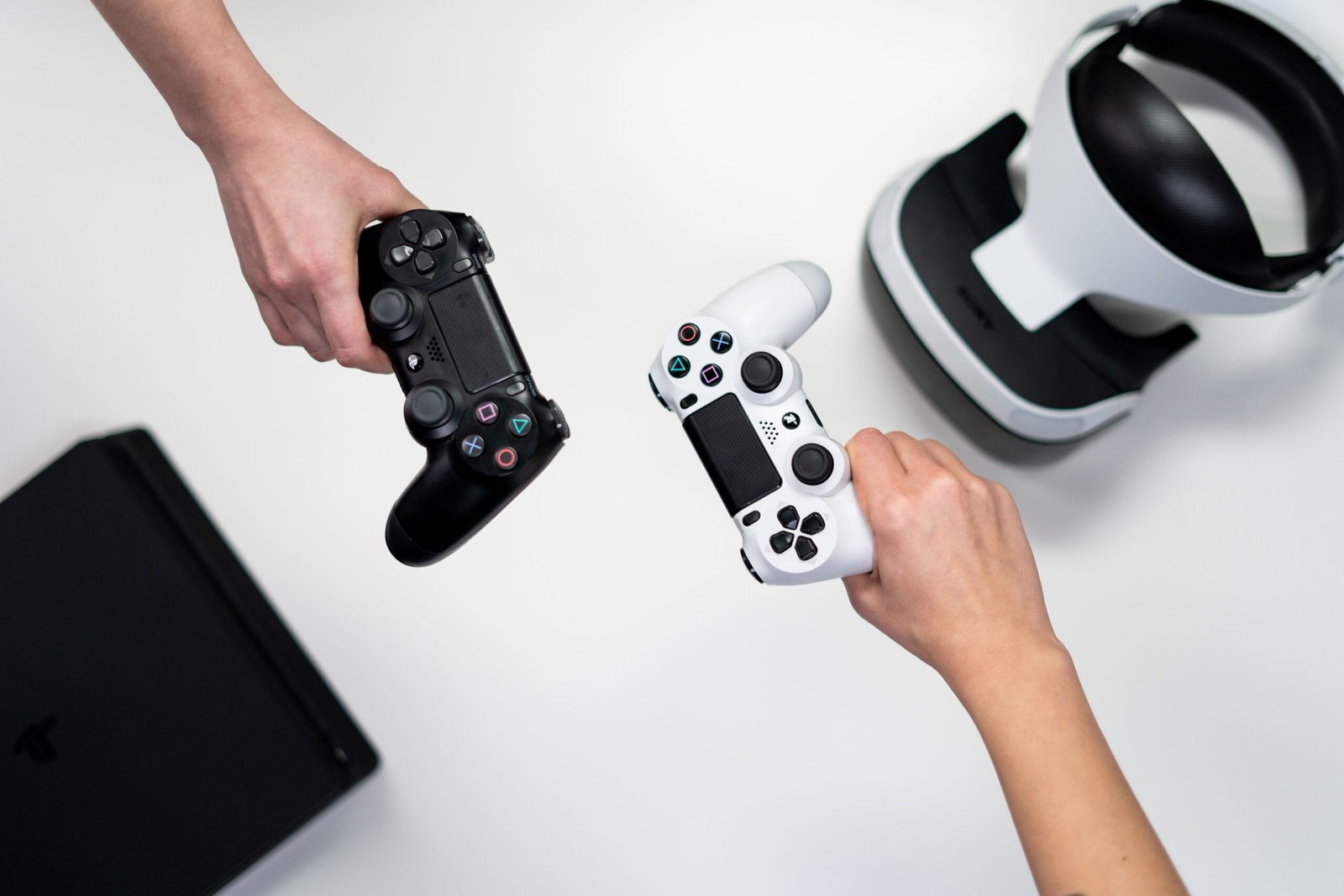
Most connection failures come down to battery, cable, or a stale pairing, not a hardware fault
A controller that won’t connect is one of the most common gaming frustrations, and the good news is that the vast majority of cases come down to a handful of predictable causes rather than a genuine hardware fault. Work through these in order before assuming you need a replacement.
Start Here: The Universal Basics
Regardless of platform, these checks solve the majority of connection issues. Confirm the controller has meaningful battery charge, since a nearly-dead battery can cause a controller to power on but fail to complete pairing. Use a cable that actually supports data transfer, not just charging, since many cheap USB-C and micro-USB cables are power-only and will never allow a successful wired sync. Connect directly to a port on the console or PC itself rather than through a USB hub or extension cable, both of which can interfere with the pairing handshake.
PS5 DualSense
If wireless pairing fails, connect via USB-C cable first and press the PS button, which forces the console to detect the controller directly. Go to Settings > Accessories > General > Bluetooth Accessories, select the controller, and choose “Forget Device” before attempting to re-pair from scratch. If problems persist, a soft reset via the small Reset button (accessed with a paperclip or SIM tool) on the back of the controller, held for about five seconds, clears a stuck pairing state and requires re-syncing afterward.
Xbox Controllers
Hold the Xbox button on the controller for a few seconds to fully power it off, then power it back on and hold the pairing button (near the top of the controller) until the Xbox logo flashes rapidly. On the console, use the pairing button located near the disc slot or USB port, and ensure the two are within close range without other Bluetooth or wireless devices between them causing interference.
Nintendo Switch Joy-Cons and Pro Controller
Reattach Joy-Cons to the console rails directly and detach again, which frequently resolves a stuck wireless pairing state. For persistent issues, navigate to Controllers > Change Grip/Order on the Switch Home Menu and follow the on-screen re-pairing prompts. A controller that syncs but drops repeatedly during play often points to battery level or physical interference rather than a pairing failure itself.
PC (Bluetooth or USB)
A controller previously paired to one device (a PS5, for example) needs to be explicitly forgotten and re-paired when switching to a PC, since most controllers only maintain an active Bluetooth pairing with one device at a time. Check Windows’ Bluetooth device list and remove any stale or duplicate entries for the same controller before attempting a fresh pairing.
Troubleshooting Checklist
| Check | Fixes |
|---|---|
| Battery level | Charge fully before troubleshooting further |
| Cable type | Confirm it supports data, not just charging |
| Previous pairing | Forget the device on any other system it was last connected to |
| Interference | Move away from routers, other Bluetooth devices, USB 3.0 hubs |
| Firmware | Update both console/PC and controller firmware if prompted |
When It’s Genuinely a Hardware Problem
If a controller repeatedly disconnects despite being close to the console, won’t charge with multiple known-good cables, or won’t power on at all, that points toward a genuine hardware fault rather than a settings issue. At that point, contacting the manufacturer’s support for repair or replacement is more productive than continuing to troubleshoot.
If you’re dealing with drift rather than a connection issue specifically, our controller stick drift guide covers that separately.
Frequently Asked Questions
Why does my controller connect but then immediately disconnect?
This usually points to low battery, wireless interference, or a stale pairing conflicting with another device rather than a fundamental connection failure, and is worth ruling out before assuming hardware damage.
Can a controller be paired to two devices at once?
Generally no for standard wireless controllers, most maintain an active connection with only one device at a time, and need to be explicitly forgotten and re-paired when switching.
Does a third-party controller cause more connection problems than an official one?
It can, since third-party controllers sometimes have less consistent Bluetooth implementations. If you’re troubleshooting a third-party pad, testing an official controller helps determine whether the console or the controller itself is the issue.
Final Thoughts
Most controller connection issues resolve with a fresh pairing, a data-capable cable, and ruling out wireless interference, not a hardware replacement. Work through the basics systematically before assuming the worst.
About the Author