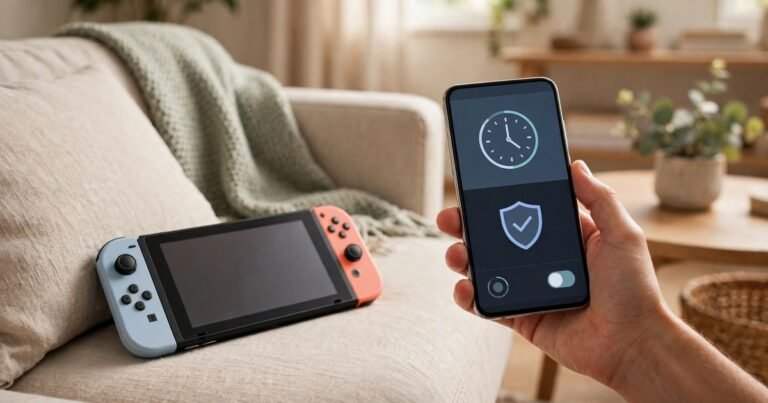
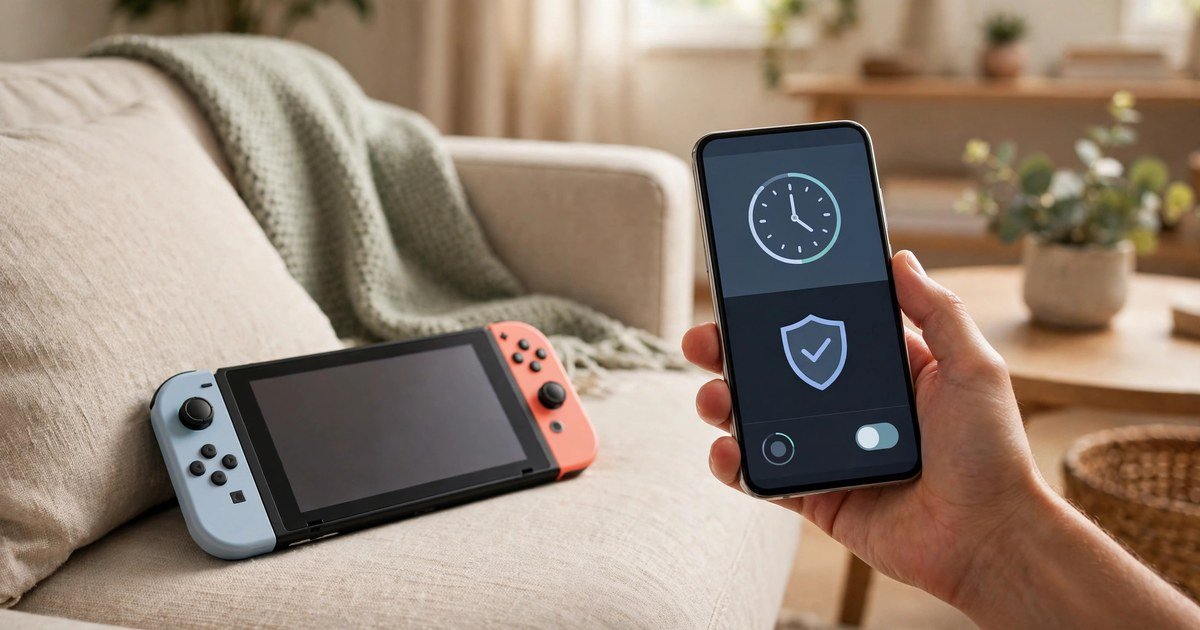
Nintendo Switch parental controls limit play time, block games by age rating, control who your child can chat with, and stop surprise spending. Download the free Nintendo Switch Parental Controls app on your phone, sign in with your Nintendo Account, link it to the console, then set your limits. On Switch 2 you also need to approve GameChat separately for players under 16.
The three layers of Switch parental controls
Nintendo gives you three separate layers, each controlling something different.
| Layer | What it controls |
|---|---|
| Console settings | Age ratings, chat, social media |
| Parental Controls app | Play time, bedtime, play history, safelist |
| Nintendo Account family group | eShop access, spending limits |
Set all three for real coverage. The family group works at account level, so it follows your child to a second console.
Before you start
You need a Nintendo Switch, Switch Lite, Switch OLED, or Switch 2 with an internet connection, a smartphone with the free Nintendo Switch Parental Controls app installed (iOS 16.0 or newer, or Android), and your own Nintendo Account. Sign in with the parent account, not your child’s. Keep the console switched on nearby for the linking code. For GameChat on Switch 2, you also need a Nintendo Switch Online membership and a phone number registered to the parent account. GameChat’s free access period ended on 31 March 2026.
How to set up parental controls with the app
The app unlocks the most options, and the steps are the same on Switch 2 and the original Switch.
- Download the Nintendo Switch Parental Controls app and open it.
- Sign in with your Nintendo Account, or create one for free first.
- Follow the prompts until the app shows a six digit registration code.
- On the console, open System Settings, scroll to Parental Controls, and select Parental Controls Settings.
- Choose “App Has Been Installed” (Switch 2) or the option that says you have already downloaded the app.
- Enter the six digit code from your phone and select Link or OK.
- Back in the app, choose a restriction level, then set a daily play time limit and a bedtime.
- Write down your PIN. The app sets one for you and emails it to you.
One app can manage more than one console, and restrictions take effect once the console next connects to the internet.
How to set up parental controls on the console only
Without a phone, open System Settings, then Parental Controls, then Parental Controls Settings. Press X to skip the app, choose a restriction level, then set a four to eight digit PIN and confirm it.
This route is cut down. Without the app there is no play time limit, bedtime alarm, play history, or game safelist. On Switch 2, players under 16 cannot use GameChat at all unless the app is linked.
Age limits in the UK: how PEGI works on Switch
Most guides get this wrong for UK families. American guides describe presets called Teen, Pre-Teen, and Child, and they talk about ESRB ratings. A UK console uses PEGI ratings instead: 3, 7, 12, 16, and 18. The preset names are the same, but the ages they block follow PEGI on a UK console. Young Child blocks games rated PEGI 7 and above, Child blocks PEGI 12 and above, Pre-Teen blocks PEGI 16 and above, and Teen blocks PEGI 18 only.
If the presets do not fit, choose Custom Settings and pick an exact PEGI age. Custom Settings also control communication separately from game ratings, which matters because a PEGI 3 game can still have online chat. Our PEGI ratings guide for parents covers what the labels do and do not measure, including loot boxes and online chat.
Ratings block games, not genres. A cute looking game can still carry a PEGI 12 or 16 rating, so check the eShop page before you buy, not the box art. If one game above your child’s limit is fine, add it to the app safelist and it plays without the PIN.
Play time limits and bedtime
Play time limits only exist in the app. Go to Parental Controls, then Play-Time Limit. Set a daily limit from No Limit up to six hours, in 15 minute steps. When the limit is reached, the console warns your child and then suspends play, with time to reach a save point.
The bedtime alarm works the same way. Set bedtime anywhere from 4:00 PM to 11:45 PM, with an optional restart time the next morning between 6:00 AM and 9:00 AM. The app also shows a monthly summary of what your child played.
GameChat on Switch 2: the approval parents must give
GameChat is the Switch 2 feature most guides written before June 2025 miss completely. It adds voice and video chat with friends through the C Button.
Players under 16 cannot use GameChat until a parent approves it. First, put your child’s account in a family group with a parent or guardian aged 18 or over. Second, register a phone number on the parent’s Nintendo Account. Third, in the app select GameChat, then Set Up Parental Controls, pick the supervised user, and verify the phone number with the text code. Fourth, on the console your child presses the C Button and accepts the terms.
Approvals work both ways. Your child can only chat with friends whose own parent has also approved them. You can approve or refuse each chat request in the app. If you are still choosing between consoles, our Switch buying guide for 2026 compares Switch 2 with the original Switch.
Spending controls and the family group
Console controls do not stop spending. That job belongs to the Nintendo Account family group, and it is the step parents most often skip. Sign in at accounts.nintendo.com with the parent account and open your family group. From there you can set a monthly spending limit, require a password for every purchase, and restrict which eShop content your child can see. A supervised account cannot buy games rated above its age limit.
Never save your card on a console your child uses without a purchase password. Set the spending limit too, so the damage is capped if a password is ever shared or guessed. If your child also plays on a Switch Lite, the family group settings follow the account there, so check our guide to which Switch games work on Switch Lite before buying a second copy of a game.
If you forget your PIN
If the app is still linked, open it, tap Parental Controls, then Parental Controls PIN. Your current PIN is shown on screen.
If the app is not available, use the console. Select the orange Parental Controls icon on the HOME Menu, enter a wrong PIN six times, then press the plus or minus button for Help. The console shows an enquiry number. Do not leave that screen, because the number changes if you exit. Go to Nintendo’s UK support site and request a master key with that number. The key is sent to the email address registered to your Nintendo Account.
Two warnings. Six wrong PIN entries in 30 minutes locks further attempts for 30 minutes. Resetting the PIN this way also unlinks the app and deletes its stored play history and restrictions, so you will need to set them up again.
Frequently asked questions
Can I set different parental controls for each child on one Switch?
Not on the console itself. Console restrictions apply to everyone who uses that Switch, so set them for the youngest player.
Do parental controls work on Switch Lite?
Yes. Switch Lite uses the same system settings, the same app, and the same family group as the standard Switch.
Can my child turn off parental controls?
No, not without the PIN. Six wrong guesses in 30 minutes lock the console out of further attempts for 30 minutes.
Does the Parental Controls app cost anything?
No. The app is free on iOS and Android. A Nintendo Switch Online membership is separate, and it is only needed for GameChat on Switch 2.
Conclusion
Set up the app, pick a PEGI age that fits your youngest player, set a play time limit and a bedtime, approve GameChat only when you are ready, and lock down spending in the family group. That is the whole job. Then check the app once a month, and loosen the limits as your child gets older.
About the Author