Ethernet beats WiFi for gaming in most homes, but the gap is smaller than the old advice suggests. If you play ranked shooters or fighting games, run a cable. If you play casually on a modern router in the same room, good WiFi is fine. The real difference is not top speed. It is consistency: a wired connection holds its ping steady, while a wireless connection can swing up and down during a match. That swing feels like rubber banding and delayed shots.
What actually changes between Ethernet and WiFi
Three numbers decide how a connection feels in a game. Download speed matters least, because online games use very little bandwidth. Most multiplayer games run happily on 20 to 25 Mbps. What matters is latency, jitter and packet loss.
Latency, usually called ping, is the round trip time for your game data to reach the server and come back, measured in milliseconds. Under 30 ms feels excellent, while anything above 100 ms becomes obvious in fast games. Jitter is the variation in that ping from one moment to the next: a steady 40 ms connection usually feels smoother than one jumping between 15 ms and 90 ms. Packet loss is data that never arrives at all, and even 1 to 2 percent loss can cause rubber banding.
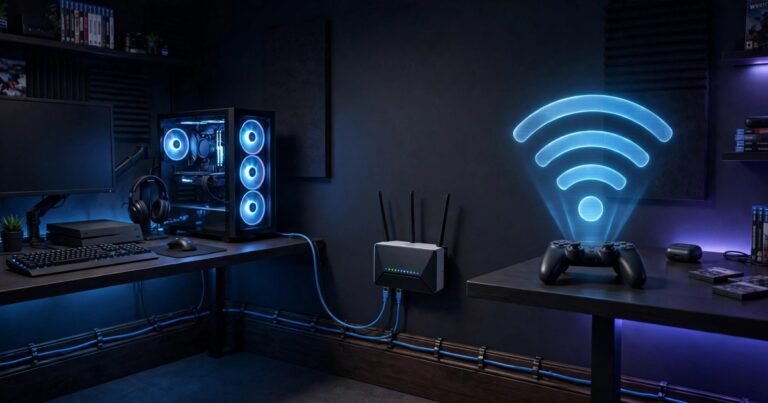
Ethernet wins on all three in a typical home. A cable does not fight walls, microwaves or a neighbour’s router for airtime. WiFi 6, WiFi 6E and WiFi 7 can match Ethernet on raw speed in the same room, but not on stability, because the wireless signal is shared and easily disturbed.
Ethernet vs WiFi for gaming at a glance
| Factor | Ethernet | WiFi |
|---|---|---|
| Added latency at home | Under 1 ms on a clean cable run | Roughly 5 to 15 ms, more with distance and interference |
| Jitter | Minimal, usually around 1 ms or less | Variable, higher when the airwaves are busy |
| Packet loss | Close to zero on a good cable | Rises with distance, walls and congestion |
| Best for | Ranked play and streaming while gaming | Casual play, handhelds and rooms where a cable is impractical |
Run the self test before you spend anything
Test your own connection first, because two homes on the same broadband package can behave very differently. You need three numbers for each connection: average ping, jitter and packet loss.
Start with your current WiFi. On a PC, run a continuous ping, for example ping -t 8.8.8.8, for five minutes while nobody else streams video. Watch the spread between the lowest and highest times, not just the average: that spread is your jitter. Note any timeouts, which show packet loss.
Then repeat the test wired, with the PC or console plugged straight into the router. If WiFi averages close to wired but spikes far higher, your problem is jitter, and a cable will fix it. If both tests look bad, the problem sits upstream, in your broadband line or the game server. Test again in the evening peak, roughly 7 pm to 10 pm.
If you are chasing unexplained lag on a console, our guide to how to fix lag on PS5 covers the console side of the same diagnosis.
The middle options when a cable run looks impossible
Many UK homes make a direct cable run awkward. Solid brick walls eat WiFi signals, routers sit in the hallway, and rented homes rule out drilling. Three middle options exist, in a clear order.
1. A flat cable run, done neatly
Before anything clever, check whether a flat Ethernet cable can reach along skirting boards or under a door. Flat cables fit under most doors and can be held with adhesive clips or trunking that peels off when you move out, which makes them renter friendly. A 15 or 20 metre Cat6 cable costs little. Try this first.
2. Powerline adapters
Powerline adapters carry the network signal through your home’s electrical wiring: one adapter near the router, one near your console or PC. They beat bad WiFi in many homes, but they never match a direct cable. Performance depends on your wiring, and it can drop sharply if the two sockets sit on different electrical circuits. Test them with the method above, and keep them only if the numbers clearly beat your WiFi.
3. Mesh WiFi with a wired backhaul
A mesh system places extra nodes around the house so devices connect to a nearby node. That helps coverage, but a node that itself connects over WiFi still suffers wireless jitter. The trick is a wired backhaul: run one cable from the router to the node nearest your gaming setup, then connect your console or PC to that node by cable.
Homes with old Virgin Media coaxial sockets have one more option: MoCA adapters, which carry Ethernet over coaxial cable. For most UK homes the ranking stays simple: direct cable first, powerline second, mesh with wired backhaul third, plain WiFi last for competitive play.
Cables, bands and router settings that actually matter
For gaming, Cat5e is enough for gigabit speeds up to 100 metres. Cat6 costs little more and gives better shielding, so it is the sensible default for a new run. Cat6a and Cat7 add cost without any gaming benefit in a normal home, so skip them.
On WiFi, use the 5 GHz band for gaming wherever the signal reaches, because it is faster and less crowded than 2.4 GHz. Use 2.4 GHz only for range. If your router lets you split the bands into separate network names, do it, so your console does not drift back to the slower band.
Router placement matters as much as router age. A router on the floor behind a television performs worse than the same router on a shelf in the open. BT, Virgin Media and Sky hubs all perform best in the open and raised up. If online play still fails to connect after the connection itself is stable, the problem may be your NAT type, which our guide to how to fix strict NAT type covers with UK provider specific steps.
Verdict: which connection for your setup
Run Ethernet to the one machine where latency decides matches, and let everything else stay on WiFi. That single cable buys you the biggest improvement in gaming feel for the least money. Downloads are another clear win for wired: a wired console pulls a full game at your line speed without the dips WiFi suffers when someone starts a video call in the next room. If your downloads crawl, read our guide to PS5 downloads so slow and how to speed them up.
If a cable is truly impossible, test powerline adapters and keep them only if the numbers beat WiFi. If you play casually, sit near the router and your self test looks clean, stay on WiFi without guilt.
Frequently asked questions
Does Ethernet increase FPS?
No. Frame rate is set by your graphics card, processor and game settings, not by your connection. Ethernet makes online play smoother and more responsive, but it cannot raise the frame rate your hardware renders.
Will WiFi 7 replace Ethernet for gaming?
Not for competitive play. WiFi 7 closes much of the speed gap and improves busy household performance, but a cable still offers lower and steadier latency.
Are powerline adapters good for gaming?
They are a useful middle option, better than bad WiFi in many homes but worse than a direct cable. Test them with the method in this guide and return them if they do not clearly beat your WiFi numbers.
Do I need gigabit broadband for gaming?
No. Online games need stability far more than headline speed. A stable 30 to 50 Mbps connection with low jitter beats a gigabit connection with wild ping swings.
Can I use Ethernet on PS5 and Xbox?
Yes. Both PS5 and Xbox Series consoles have an Ethernet port on the back. Plug a cable from the console to your router or a switch, and the console should pick up the wired connection automatically.
Conclusion
Ethernet still wins for gaming, but it wins on consistency rather than speed. Test your own connection, run a cable to the machine that matters most, and use powerline or a wired mesh node only where a cable genuinely cannot reach.
About the Author