A PS5 that overheats can usually be fixed without a repair. Give the console clear airflow, clean the dust from its vents and covers, update the system software, and test it again. If warnings or shutdowns continue after those steps, stop long sessions and seek repair. Do not open the processor area or touch the liquid metal inside.
What PS5 overheating actually looks like
A warm console is normal: warm air from the rear vents shows heat is leaving. Overheating brings warnings, shutdowns, or a clear change in behaviour. Use the symptom first, because the right fix depends on what you see.
| Symptom | What it usually means | First move |
|---|---|---|
| Loud fan only in demanding games | Normal heavy load | Check airflow, then keep playing |
| Loud fan even at the home screen | Blocked airflow or dust build up | Move the console and clean the vents |
| “Your PS5 is too hot” warning | Heat limit reached | Power off fully and let it cool |
| Sudden shutdown during a game | Protection shutdown | Cool, clean and test before playing again |
| Frame drops or stuttering | Possible heat throttling, or another fault | Rule out heat first, then check game and network |
| Grinding, clicking or a burning smell | Possible fan or hardware fault | Stop using it and seek repair |
If frame drops happen without any heat warning, the cause may not be heat. Our guide on how to fix lag on PS5 covers the network and settings checks for that case.
Step 1: Stop and let it cool down
If you get a heat warning or a sudden shutdown, do not restart straight away. Choose power off if the menu is still available, and do not use rest mode instead. Rest mode keeps parts of the system active, so it is not a proper cool down. Once the power light is fully off, unplug it and leave it in an open area until cool. Restarting a hot console again and again can turn a simple airflow problem into a shutdown loop.
Step 2: Give it air
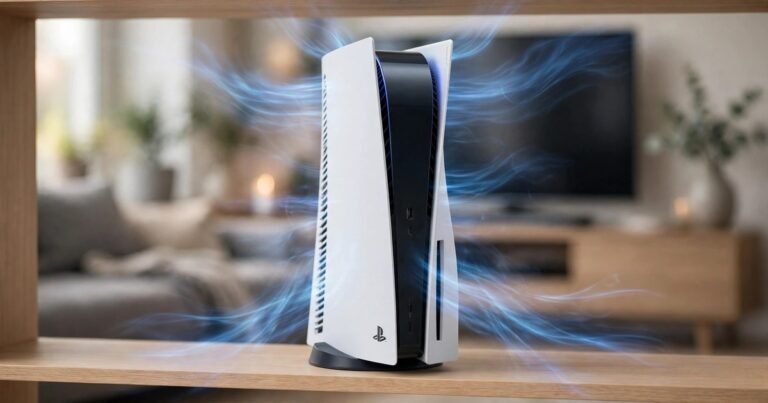
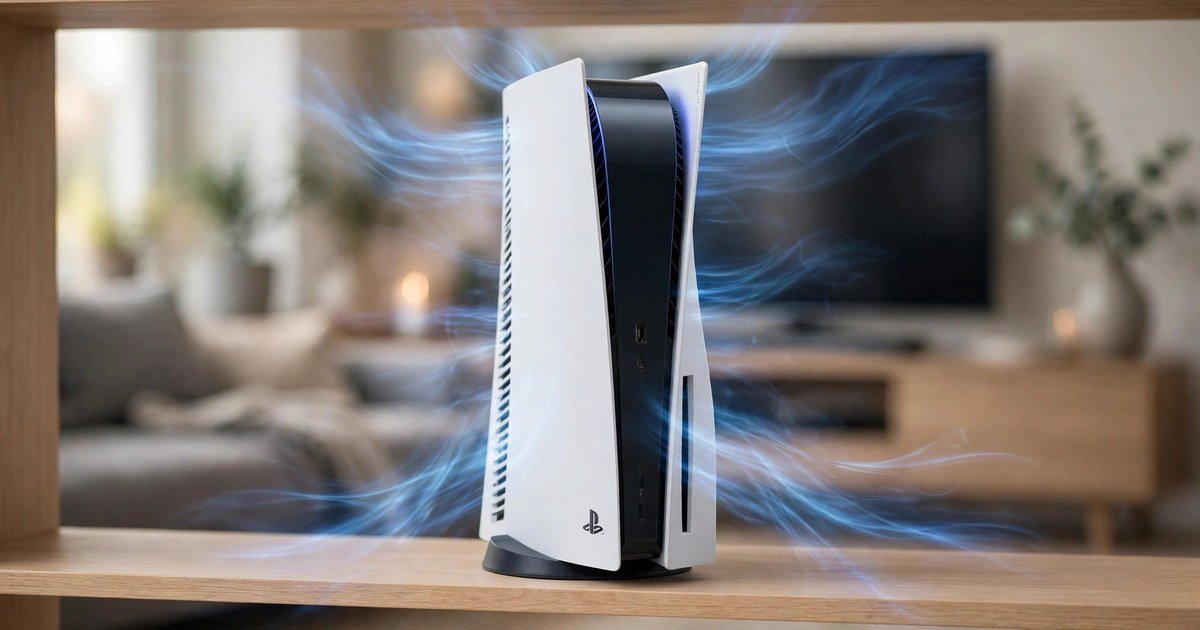
Most PS5 overheating cases start with placement. Sony guidance says to leave at least 10 cm between the console and a wall, and to avoid narrow or cramped spaces. That rule matters most behind the console, where hot air leaves through the exhaust vents. Trapped hot air gets pulled back in, so the fan works harder and the console gets louder.
Put the PS5 on a hard, flat surface such as a shelf or desk, not on carpet, a rug, a bed, or a sofa. Soft surfaces block lower vents and collect dust. Do not place it inside a closed TV cabinet, and do not stack a router or set top box on top of it. If it must stay in a cabinet, leave the door open while you play. Use the supplied stand so it sits stable, vertically or horizontally, whichever gives the vents most clear space.
Step 3: Clean the dust, the safe owner level way
Dust is the second common cause. It builds up on vents, under the covers, and in the dust catcher holes near the fan. A careful clean takes about ten minutes and needs only a microfibre cloth and a low powered vacuum. PlayStation support recommends a low powered vacuum for dust around the vents, so start with that rather than blowing dust deeper inside.
Power off fully and unplug first. Never clean vents while it is on or in rest mode. Wipe the outside with a dry microfibre cloth, then vacuum the vents gently on a low setting. Do not poke anything into the vents: poking can bend fan blades or push dust onto heatsink fins you cannot reach.
Next, remove the outer covers. On the original PS5 they lift off without tools, but the method differs by model, so check your model manual first. Under the covers are dust catcher holes near the fan: vacuum them gently. This is the owner level deep clean: covers off, dust out, covers back on. Do not remove the fan, heatsink, or internal screws.
Step 4: Do not touch the liquid metal
The PS5 uses liquid metal, a conductive thermal material, between its processor and heatsink. That is the reason owner repairs stop at the covers. Liquid metal conducts electricity, it can move if disturbed, and it needs a precise amount applied in a sealed area. Too much, too little, or a spill onto nearby parts can cause serious damage.
A clip on external cooling fan cannot fix this either. At best it moves a little air around the outside. It cannot clean blocked vents or repair a failing internal cooling system. If airflow and cleaning have not fixed repeated warnings or shutdowns, the fault is likely inside, and that job belongs to a trained repairer.
Step 5: Check software, rest mode and the game itself
Once the console is cool, clean and well placed, update the system software. Go to Settings, then System, then System Software, and install any available update. Updates can improve fan behaviour and fix bugs that push the system harder. After an update, power the console fully off and on again rather than leaving it in rest mode.
Also check rest mode. Downloads, updates and charging controllers keep the system partly active. Our guide on how to speed up slow PS5 downloads covers the rest mode settings that affect downloads. If the console feels warm while resting, turn off stay connected and charging options and test again. Then test one demanding game for 30 minutes. Loud fan in every game points to airflow or dust; trouble in one game only points to that game pushing the hardware harder.
When repair is the right call
Seek repair if any of these apply after the airflow and cleaning steps: repeated warnings, repeated shutdowns, a fan that grinds or does not spin, a burning smell, or a console that stays loud at the home screen. Continued shutdowns will not fix themselves.
In the UK, start with PlayStation support and check your warranty before you pay anyone. If it is still under warranty, do not open it further or let an unauthorised repairer open it first, as that can affect a claim. If out of warranty, use a reputable repairer and ask for a cooling system diagnosis before they quote a liquid metal or fan job.
A simple prevention routine
Keep the 10 cm clearance, keep the console off carpet, and keep the vents uncovered. Check vents every couple of months, more often with pets, as pet hair clogs vents fast. Take breaks during very long sessions. If you are setting up a new display, our honest answer to whether you need a 4K monitor for PS5 can help you judge if that upgrade is worth the extra load.
Frequently asked questions
Is a loud PS5 fan normal?
Sometimes. A loud fan during a demanding game is the cooling system doing its job. A fan that stays loud at the home screen is a sign to check airflow and dust.
Can overheating damage a PS5?
Yes, if it keeps happening. The console shuts down to protect itself, but repeated shutdowns stress components over time, so treat repeated warnings as a repair signal.
Is it safe to vacuum PS5 vents?
Yes, with a low powered vacuum after a full power off and unplug. PlayStation support recommends this method. Use gentle suction and do not poke into the vents.
Should a PS5 stand vertically or horizontally for cooling?
Either position works if the vents have clear space. Sony supports both. Choose the position that gives the exhaust vents the most room, and use the stand.
Do external PS5 cooling fans work?
Not as a fix for overheating. They may move some air around the outside, but they do not clean blocked vents or repair a failing internal cooling system.
Does rest mode cause overheating?
Rest mode alone should not overheat a healthy console, but downloads, updates and charging produce some heat. If your console feels warm in rest mode, turn off those options and check that its vents are not blocked.
Conclusion
Fix PS5 overheating in order: cool it down, give it air, clean dust at owner level, update software, and test it. Leave the liquid metal and internal cooling parts alone. If warnings or shutdowns continue after those steps, seek professional repair, not another restart of a hot console.
About the Author