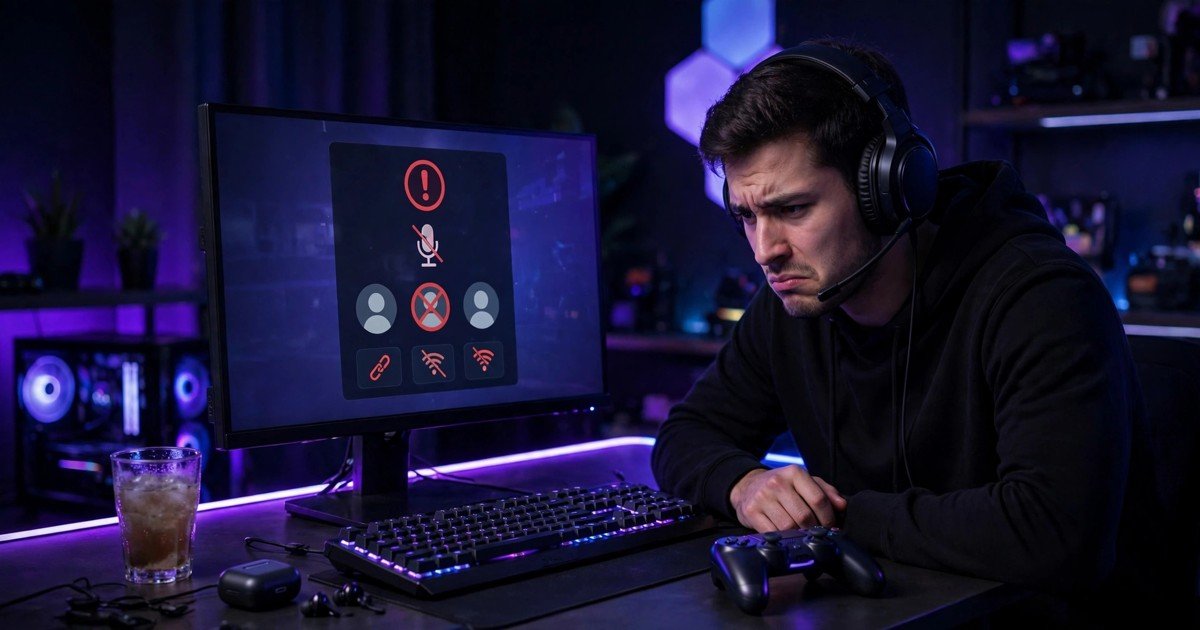
Discord keeps disconnecting during games when its live voice connection breaks, even though your game stays online. The fastest fix is to turn off the “Enable Quality of Service High Packet Priority” setting in Discord, then set a voice region close to you. If the drops continue, check your network connection next.
First, work out which kind of disconnect you have
Do not start with random fixes. The pattern tells you where the fault sits. Ask who drops, where it happens, and when it happens.
| What happens | What it usually means | Start here |
|---|---|---|
| Everyone drops at once | A server or region problem | Change the voice region |
| Only you drop, in every channel | Your connection or settings | Turn off QoS, then test a wired connection |
| Only you drop, in one channel | That channel’s region setting | Change that channel’s region override |
| You drop only when one game launches | That game hogs your system | Turn off the overlay and hardware acceleration |
| You drop at the same time each evening | Peak time congestion | Use a cable and limit other traffic |
Also open the voice debug panel while connected. Click “Voice Connected” in the bottom left of the Discord desktop app. It shows your ping, packet loss, and a green, yellow, or red signal. Note the numbers before you change anything, so you can tell whether a fix helped.
Fix 1: Turn off QoS High Packet Priority
This is the single most useful Discord-specific fix. The setting marks your voice packets as high priority so your router handles them first. On many home routers, the opposite happens. The router mishandles the marked packets and drops them instead, causing a sudden ping spike and then a disconnect.
Open User Settings, then Voice and Video. Scroll to Quality of Service and switch off “Enable Quality of Service High Packet Priority”. Quit Discord from the system tray, then open it again. Test voice for one full gaming session. If the drops stop, you have found your fix.
Fix 2: Change the voice region for the channel
Discord normally picks a voice region for you, and that choice is not always the best one. A bad route to a distant region adds delay and makes drops more likely. This matters most when one channel keeps failing while others work fine.
If you can manage the channel, right-click it, choose Edit Channel, and open Region Override. Pick the region closest to most of the people in the channel. For a UK group, that usually means a Western Europe region. If a different channel on the same server works fine, the fault sits with the first channel’s region, not your connection.
Fix 3: Check Krisp, the audio subsystem, and the overlay
Three more Discord settings cause disconnects during games, and most generic guides bury them or skip them.
First, Krisp noise suppression. Krisp removes background noise from your microphone, but it runs on your processor. When a demanding game already pushes your processor hard, Krisp can stutter or crash the voice stream. Try switching noise suppression off for one session. If voice stays connected, keep it off during heavy games.
Second, the audio subsystem. In Voice and Video settings, try switching between Standard and Legacy. Legacy uses an older audio path that suits some headsets better. Restart Discord after you change it.
Third, hardware acceleration and the game overlay. Hardware acceleration lets Discord use your graphics card to draw its own window, which can clash with a graphics-heavy game. Turn it off under User Settings, then Advanced. Then turn off the game overlay for any game that drops voice, under User Settings, then Game Overlay.
Fix 4: Fix the network underneath Discord
If the Discord settings did not solve it, the fault is almost certainly your network. Voice needs a stable connection, not a fast one. A modest broadband line with low packet loss beats a very fast line that drops packets.
Start with a wired connection. Plug your PC directly into your router with an Ethernet cable and test voice for a session. If the disconnects stop, your Wi-Fi is the problem, not Discord. Our guide to Ethernet vs Wi-Fi for gaming explains how to test this properly, including the powerline option for rooms far from the router.
Next, restart your router properly. Unplug it from power, wait a full 60 seconds, then plug it back in and wait until it fully reconnects. Then pause anything else that uses your connection while you play. Cloud backups, game downloads, and video streams all compete for upload speed, and voice needs its share constantly.
Also check your VPN and firewall. A VPN adds an extra hop and can route voice through a distant server, so turn it off for one test session. Make sure Discord is allowed through Windows Firewall and your antivirus. Finally, check your NAT type, since a strict NAT can interfere with voice. Our guide to how to fix a strict NAT type covers the UK router settings for BT, Virgin Media, and Sky, plus CGNAT on smaller UK providers.
Fix 5: Clear the cache, update, and test the web app
A corrupt cache can make Discord behave strangely even on a good connection. Close Discord, clear its cache folder on your PC, and reopen the app. Then check for updates by pressing Ctrl and R while Discord is open.
As a diagnostic step, try Discord in your browser at discord.com/app. If the browser version holds a stable connection while the desktop app drops, the fault sits in the desktop app itself. Try a clean reinstall: remove the app, restart your PC, then install a fresh copy from Discord’s own site.
Discord on console and mobile
Console players join voice from the console after linking Discord to PlayStation or Xbox. You cannot change QoS or region settings from the console, so change the channel region from the Discord app on your phone or PC instead. Test with the console on a wired connection if you can. For PlayStation, our guide to how to fix lag on PS5 covers the network checks that also help voice.
On mobile, Discord drops most often when the phone switches between Wi-Fi and mobile data, or when battery saving puts the app to sleep. Stay on one connection during a call, and exclude Discord from battery optimisation.
A note for UK players
UK broadband has two quirks worth knowing. First, evening peak time congestion is real on some networks. If you only drop between 7pm and 11pm, test at a quiet time of day. Second, some smaller UK providers use CGNAT, which shares one public address between many homes and can block the direct connections voice apps prefer. Ask your provider whether your connection uses it.
Frequently asked questions
Why does Discord disconnect only when I play games?
Games raise the load on your connection, processor, and graphics card all at once. That load exposes weak points that stay hidden when you only chat.
Should QoS High Packet Priority be on or off?
It depends on your router. It helps on some networks and breaks voice on others. Turn it off first and test for a full session. Only turn it back on if testing shows your connection is better with it on.
Does Discord disconnecting mean my internet is bad?
Not necessarily. Voice is sensitive to packet loss and jitter, which differ from raw speed. A fast connection with frequent packet loss will drop voice calls while downloads still look fine.
Why does Discord work in my browser but not in the app?
The browser version uses a different audio and network path from the desktop app. If the browser holds voice steady, the app, its cache, or its settings are at fault. Clear the cache and reinstall the app.
Can a VPN cause Discord to disconnect?
Yes. A VPN can route voice traffic through a distant server and add delay and packet loss. Turn it off for a test session. If voice stabilises, exclude Discord from the VPN with split tunnelling, or leave the VPN off while you play.
Conclusion
Start with the Discord settings that generic guides skip. Turn QoS off and test it. Set a voice region close to your group. Then check Krisp, the audio subsystem, and the overlay. Only after that should you move to your network: a wired connection, a proper router restart, and paused uploads.
About the Author