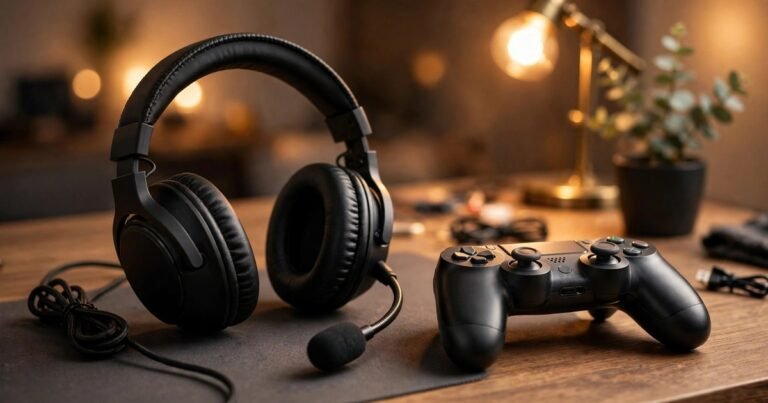
Gaming headset mic not working on PC? Start with the symptom, not a random fix list. If Windows hears nothing, the fault is usually a cable, splitter, mute switch or privacy block. If Windows hears you but Discord or a game does not, the fault is almost always app routing. This guide works through both cases in order.
The fastest test takes one minute. In Windows Sound settings, speak and watch the input bar. If it moves, the fault sits in Discord, Steam or the game. If it stays flat, stay with hardware and Windows checks.
Match the fix to your symptom
| What you see | Most likely cause | Fix first |
|---|---|---|
| No mic listed in Windows | Loose cable, missing splitter or dead port | Reseat the plug, try another port, check the splitter section |
| Mic listed but bar never moves | Mute, privacy block or wrong default | Check mute, then privacy and default |
| Works in Windows, not in Discord | Discord input or sensitivity | Set input by name, not to Default |
| Works in Discord, not in one game | Game voice or push to talk conflict | Check the game voice menu |
| Voice robotic or quiet | Bluetooth hands free profile | Switch profile or adjust levels |
| Works on console, not on PC | TRRS wiring or controller path | Test direct on PC |
Quick hardware checks
Check the mute switch first. It may sit on an inline control, an earcup or a USB sound card. Toggle it and look for a red light. Push a detachable boom fully home until it clicks.
Next, reseat every connection. Unplug the headset, wait five seconds and plug it back in. For USB headsets, use a rear PC port, not a hub or monitor port. For wireless headsets, reseat the dongle and check it is paired to that dongle, not to a nearby phone.
Finally, test the headset on another device. If it fails everywhere, the cable, boom, dongle or capsule is likely at fault.
Fix Windows 11 sound and privacy settings
Windows 11 can hold several microphones at once. Go to Settings, then System, then Sound, then Input. Select your headset mic by name and speak, and confirm the input bar moves.
Now check privacy, which blocks more headsets than any driver fault. Go to Settings, then Privacy and security, then Microphone. Turn on Microphone access and Let desktop apps access your microphone. Discord, Steam and most games are desktop apps, so they stay silent without that second toggle.
Then set the headset as default. Press Windows plus R, type mmsys.cpl and press Enter. On Recording, right click your mic and choose Set as Default Device and Set as Default Communication Device. Under Properties, then Levels, set volume to at least 80. On Advanced, untick exclusive control and turn off enhancements while you diagnose.
Fix drivers without reinstalling everything
Open Device Manager, expand Audio inputs and outputs, right click your headset mic and choose Update driver. If the mic still fails, uninstall the device, unplug the headset, restart and plug it back in. Windows will rebuild the entry cleanly.
Get branded drivers and firmware from the maker only. Logitech G HUB, Razer Synapse, SteelSeries GG, Corsair iCUE and HyperX NGENUITY all carry firmware fixes for mic detection. If a brand app causes problems, uninstall it and test on the plain Windows driver. Disable mics you never use, so Windows stops switching back to them.
Wired headsets: the splitter problem
This is the most common wired fault on a desktop, and it explains why a headset works on a phone but not on a PC. Most gaming headsets use one 4 pole TRRS plug for headphones and mic. Many desktop PCs have two separate 3.5 mm sockets, green for headphones and pink for mic. Plug a TRRS headset into the green socket and you get audio but no mic, because the mic contact never connects.
The fix is a cheap TRRS to dual 3.5 mm splitter, often called a Y splitter. Plug the green lead into the headphone socket and the pink lead into the mic socket. If your case has a single front combo jack, try that first, then a rear motherboard socket, because front panel wiring fails often on older cases. If you already use a splitter, swap it: splitters can pass audio while the mic line breaks.
Wireless and Bluetooth: watch the hands free trap
Bluetooth headsets have two modes, and Windows can pick the wrong one. The stereo profile, A2DP, gives good game audio but no mic. The hands free profile, HFP, carries the mic but drops audio to telephone quality and often sounds robotic. If your mic works but game audio sounds awful, Windows has switched you to hands free.
For gaming, a dedicated 2.4 GHz dongle usually beats Bluetooth, because it keeps audio and mic on one stable link. To re-pair, remove the dongle, restart, plug it into a rear USB port, then turn the headset on.
Fix Discord routing
If Windows hears you but Discord does not, stop changing Windows settings. In Discord, go to User Settings, then Voice and Video. Set Input Device to your headset mic by name, not to Default, because Default follows Windows and can change after a reconnect. Set Output Device by name too.
Next, check input sensitivity. Turn off Automatically determine input sensitivity and drag the threshold down until normal speech sits well above it. Turn off noise suppression, echo cancellation and automatic gain control while you diagnose, because Krisp can swallow a quiet voice. If Mic Test works but one server stays silent, check for a server mute or missing Speak permission. If Mic Test fails, use Reset Voice and Video Settings, then set the input again. If voice keeps cutting out, compare your setup with our guide to ethernet vs WiFi for gaming.
Fix Steam and in game voice chat
Steam has its own voice settings, and games can ignore Windows defaults. In Steam, go to Settings, then Voice, confirm your headset mic is listed and use its test feature. If Steam hears you but a game does not, check that game voice menu: voice chat on, input set by name, open mic for testing, and push to talk key free of conflicts. For browser games, allow mic access in site settings, then reload. The same isolation method helps launcher faults, as in our guide to a Steam game that will not launch.
Console headsets used on PC
A headset that works on PlayStation or Xbox does not always work the same on PC. If the headset plugs into a USB controller, Windows may list the controller as the audio device. Test direct into the PC first, with a splitter if needed. If it works direct but not through the controller, the controller path is at fault.
When the headset itself is the fault
Replace the headset when the mic fails on every device, the boom is loose, the cable crackles near the plug, or a dongle is not recognised on any PC. Before you buy, check our guide to the best budget gaming headsets in the UK. A new headset will not fix a privacy block or a missing splitter, so test first.
Frequently asked questions
Why can friends hear game audio through my mic?
This is usually mic bleed, a boost set too high, or a wrong Discord input. Lower the boost, set Discord input by name, and move the boom closer to your mouth.
Why does my mic work on PS5 but not on PC?
The console handles TRRS and permissions for you. On PC, a missing splitter, privacy block or wrong default device can break the same headset. Test direct on PC with a splitter, then check privacy settings.
Why is my mic so quiet even at full volume?
Check boom position first, because a distant mic needs far more gain. Then raise Windows volume to 100 and add a small boost. Test in Voice Recorder to separate Windows from app behaviour.
Does reinstalling Windows fix a headset mic?
Almost never. A mic that works elsewhere is a cable, splitter, privacy, driver or routing fault, and all five are fixable without reinstalling Windows.
Conclusion
Work the chain in order: hardware, Windows privacy and default, drivers, then app routing. Most mics come back with a mute switch, a splitter, a privacy toggle or a Discord input setting.
About the Author